File Manager (Moving Files)
Dikemas kini 23/11/2026 365 tontonan
To manage your website files using File Manager, follow the following steps:
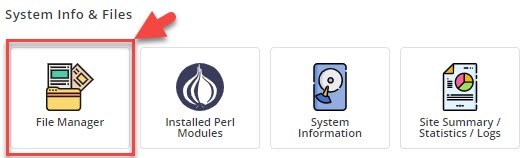
1. Click on the File Manager menu.
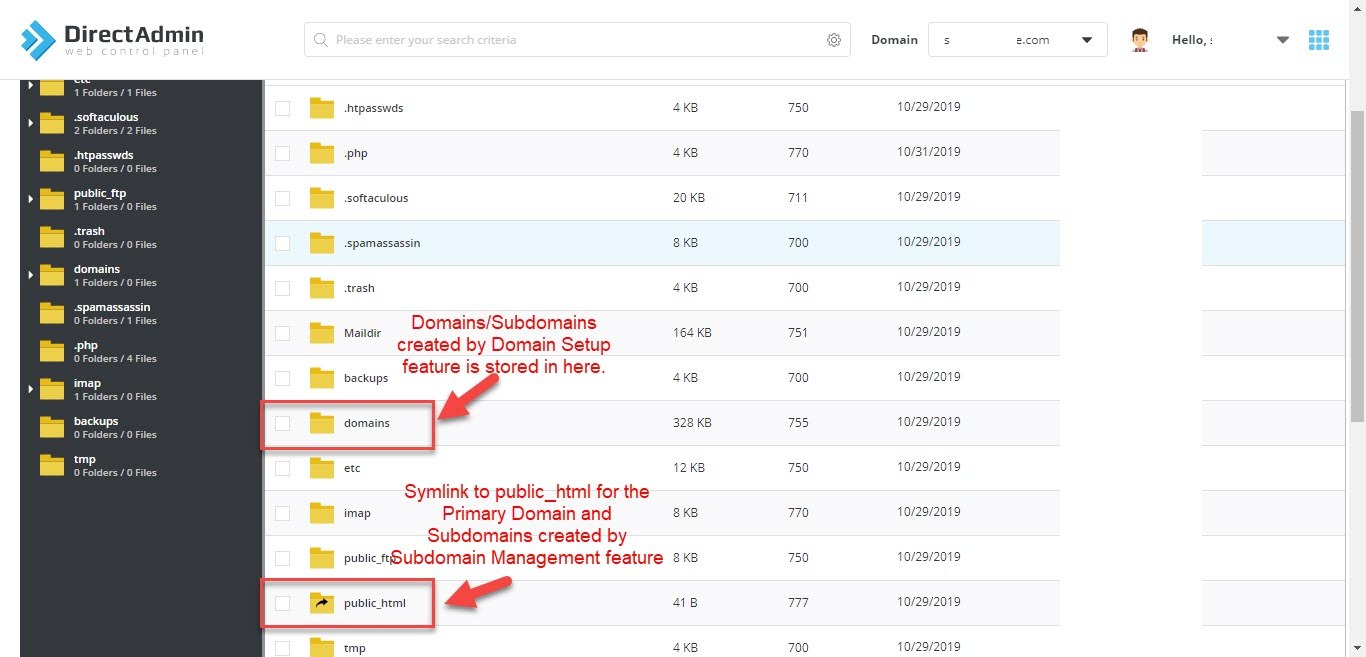
2. Navigate to the directory of your website. All your primary, addon domains and subdomains that have been added via Domain Setup feature will be available in the domains directory. For subdomains that have been added using the Subdomain Management feature, can be found in the public_html of your subdomain's domain.
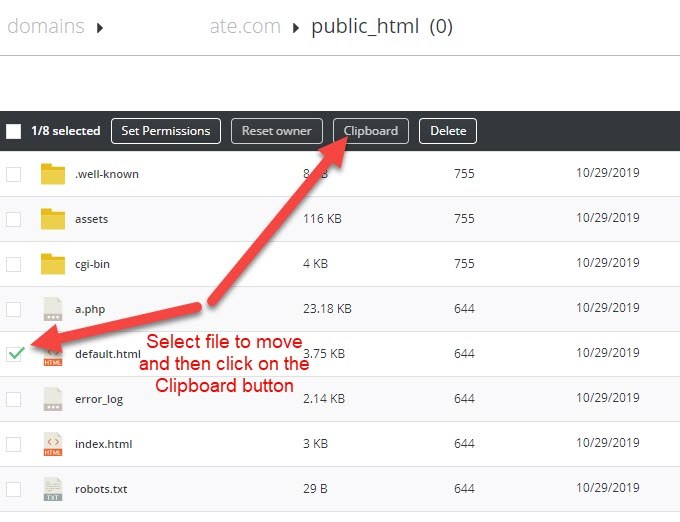
3. To move files, use the Clipboard feature. You need to select the files and then click on the Clipboard button.
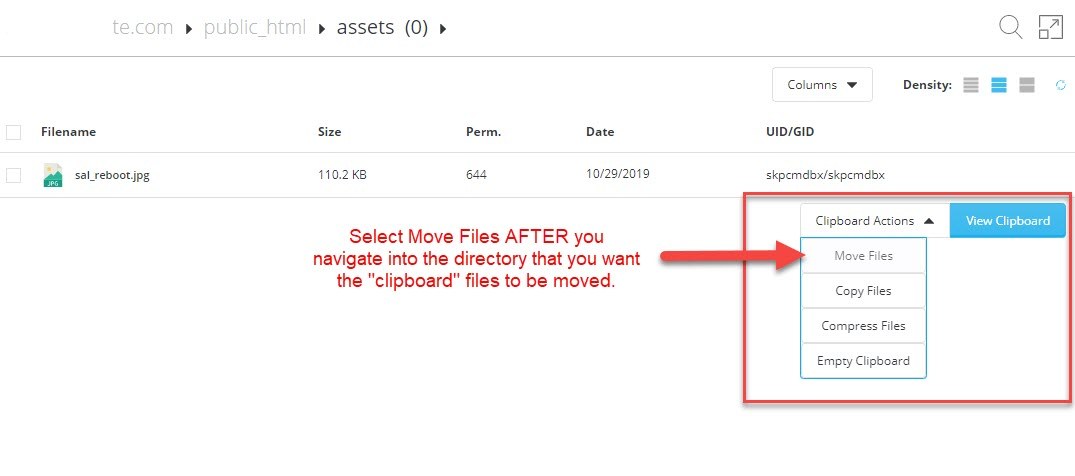
4. Once you have clicked on the Clipboard button, you can navigate to the directory that you want the files to be in, and then via the Clipboard Action, you can choose Move File to complete the moving process.
Artikel berkaitan
-
There are 3 ways to login to your web hosting account panel (DirectAdmin) which are: via Billing Area Login to your account at https://billing.sitehandy.com Navigate to Services. N…
-
To use Multiple PHP Version for your domains and subdomains in DirectAdmin, you must first ADD your domains and subdomains via Domain Setup feature.  If you add your subdomains u…
-
There are 2 features in DirectAdmin which are: Domain Setup Subdomain Management Domain Setup Use this feature to add a new domain (Domain Addon) to your web hosting account. You c…
-
SSL certificates are critically required because SSL certificates protect the exchange of data between your website and the server. If your website is set up to accept payment and…
-
Some of our servers use different PHP Selector to change the PHP Version for your domains and subdomains. However, the procedure is still the same as the Default where if you want…